

.avif)
What's New for June 2026

Discover what's new in June 2026 on the Experquiz platform: interactive questionnaire, AI-powered question bank generation, new help solution, PDF download of the results page, delayed display of assessment results...

Interactive Questionnaire: Conversational Assessment
The interactive questionnaire is a new assessment mode in Experquiz. It enables learners to answer a series of questions generated or guided by AI, with the possibility of interacting with the assistant to clarify an answer, explore a topic in more depth, or correct their understanding throughout the session.
This experience, which is more engaging and more educational than a traditional questionnaire, resembles a pedagogical dialogue while still maintaining a structured assessment framework. This feature is also referred to as conversational assessment, as the evaluation takes place in the form of a conversation.
The questionnaire can be based on different types of content: a thematic knowledge base, an existing questionnaire, a document such as a PDF or DOCX file, or even directly entered text. The AI uses this content as a knowledge source to generate questions.
Several options allow the flow to be configured: number of questions or time limit, whether interaction with the AI is allowed or not, whether questions are generated progressively or in advance before the session starts, and whether the exchange is text-based or voice-enabled.
From the learner’s perspective, the test feels like a conversation: the AI asks a question, the user responds, and the assistant then analyses the answer, indicates whether it is correct or not, and provides explanatory feedback. When interaction is enabled, the learner can ask a follow-up question before moving on to the next step. They can also respond verbally when this option is available.
From the administrator’s perspective, completed sessions can be reviewed in the results section of the interactive tests, with full details of the questions asked, the answers provided, the AI’s feedback, the qualitative score, and a final summary.
Learn how to set up an interactive questionnaire

AI-powered Question Bank Generation
This feature allows the automatic generation of a new question bank, including questions as well as a questionnaire, based on a topic or on documents provided by the user.
The user can freely describe the subject to be covered in the dedicated field. They can also upload one or more documents, preferably in PDF format, which will serve as a knowledge source for the generation process.
The request can be enriched with specific instructions, for example to focus on a particular section of the document, define the expected level, guide the type of questions, or limit the generation to certain content.
When the user launches the generation, Experquiz analyses the provided inputs, identifies the main subtopics, and then automatically creates a structured new question bank. The platform generates the corresponding categories, produces an initial set of questions, and prepares a questionnaire incorporating these questions.
Once the generation is complete, the user can freely edit the generated content: modify questions, add new ones, adjust categories, configure the questionnaire, or create additional questionnaires based on the generated question bank.
New assistance options
A help window is accessible from the interface to assist users in their use of the platform. It brings together several entry points to support resources: AI help, support contact, ticket creation, documentation access, latency consultation, and user experience evaluation.
This window allows users to quickly find answers to their questions, report a problem, or provide feedback, without leaving their workspace.
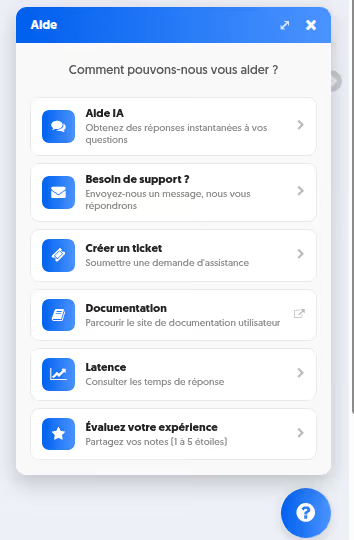
Among these possibilities, some were already available through a different method, while others are new.
- AI Help : It involves interacting with a chatbot help, which has knowledge of all the platform's user documentation. You can ask a question, for example, "How do I create a new question?", and the AI will answer, usually very accurately. The answer also includes one or more links to documentation pages, which will allow you to learn more.
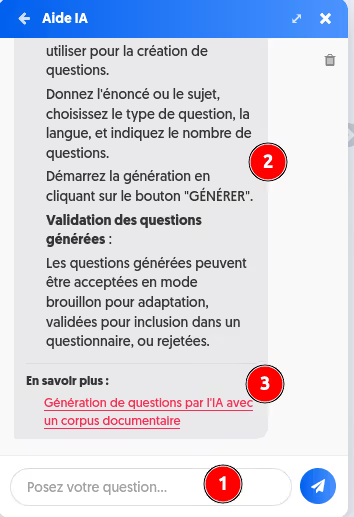
On this screenshot, you can see (1) the area where you enter your question, (2) the AI's answer, based on the platform's documentation, and (3) the links to the corresponding documentation pages.
- Need support? This link gives you access to a contact request form, allowing you to ask the Experquiz support team a question, regardless of the topic: usage issue, meeting request, suggestion, etc.
- Create a ticket. This link takes you to the ticket creation page, which you are already familiar with. A ticket is a request that will be processed with full traceability.
- Documentation. This is an external link, to the documentation website https://help.experquiz.com. This link will open in a new browser tab.
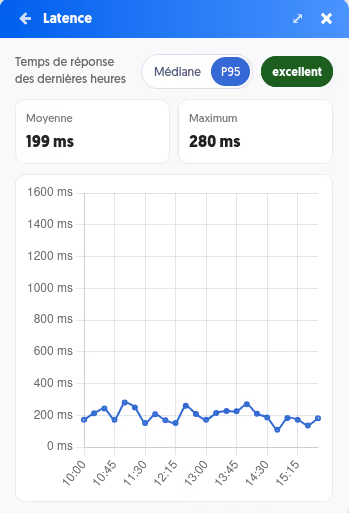
- Latency. This link displays a graph of the platform's response times over the last 6 hours. You have two representations: (a) the median response time, recorded every fifteen minutes, and (b) the 95th percentile response time. The median response time is the time at which 50% of requests are faster and 50% are slower. The 95th percentile response time is the time at which 95% of requests are faster and 5% are slower.
- Rate your experience : this feature presents a short satisfaction form where you can rate your appreciation of the platform across 5 aspects: overall satisfaction, user interface, feature richness, performance, support.
Download results page as PDF
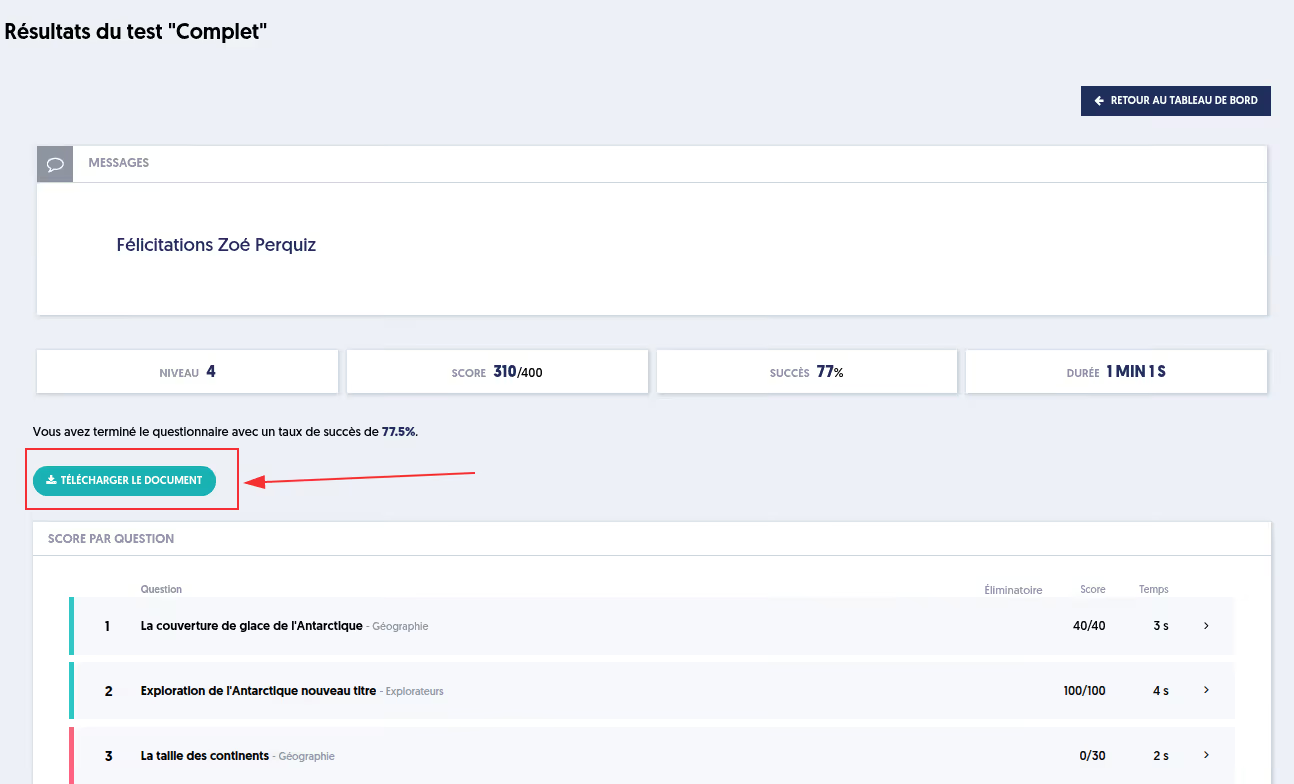
When the option “Allow downloading the results page as PDF” is active in a questionnaire's settings, a button allows the learner to download their test results page as a PDF.
Defer results display
By default, the learner accesses their results immediately after completing the test, whether it's an assessment test or a test integrated into an e-learning module.
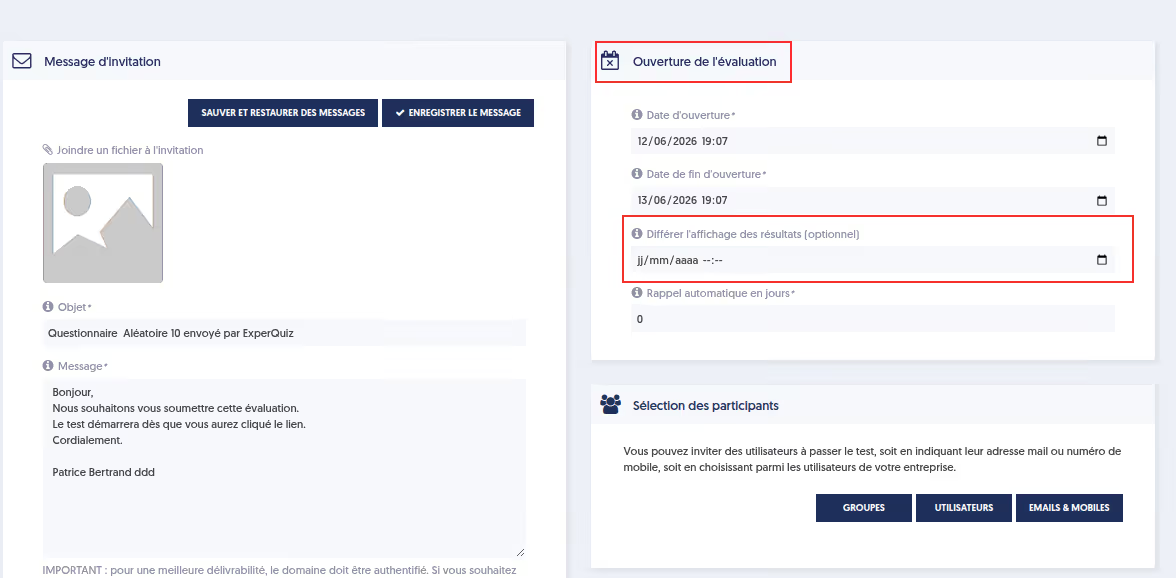
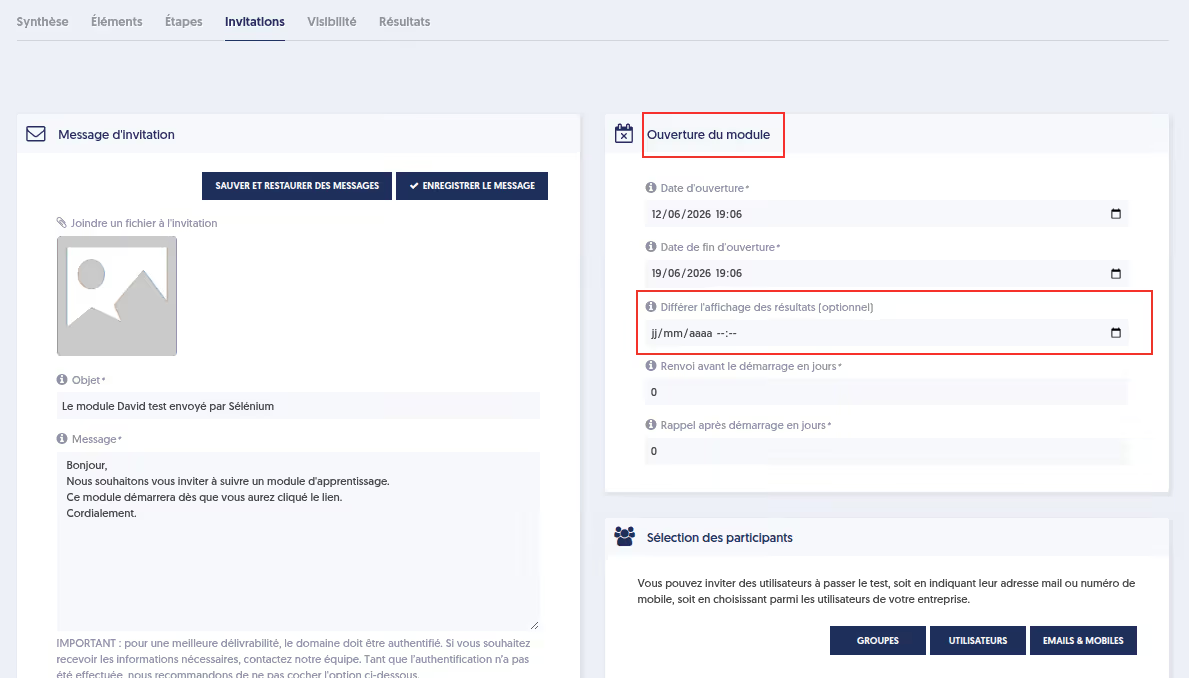
It is now possible to defer the display of the results page by specifying a date and time when sending the invitation. The results will then only be visible from the chosen time.
This option is also available when inviting to an e-learning module.
Please note : This feature does not allow deferring the generation and sending of the certificate or certificate if these have been configured.
Ticketing
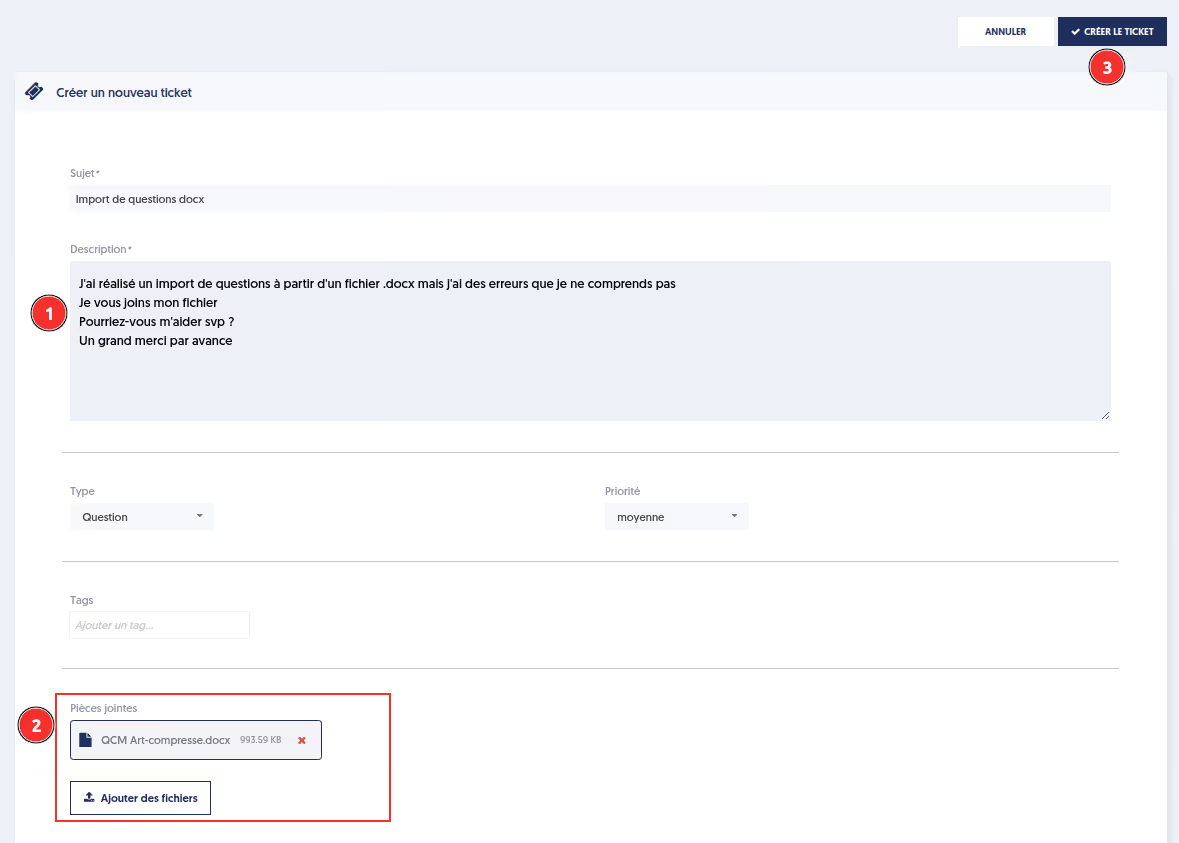
The ticketing feature has been enhanced: you can now attach one or more files to your support request.
This allows you, for example, to directly send a document, a screenshot, or any other file useful for analyzing the problem. Support teams will therefore have all the necessary information to understand the request more quickly and respond to you more efficiently.
Similar topics

.avif)

.avif)




Creating a quiz with AI: Benefits and Limitations
Artificial intelligence is rapidly transforming the way educational content is designed. Among the most promising use cases is the automated creation of quizzes and assessments.
But should you really entrust the design of your assessments to AI? Is it a true time-saver without compromise, or a risk to the quality of evaluations?




Conversational assessment: A new way to learn with AI
Conversational assessment is transforming learning with AI through question generation, response analysis, and adaptive dialogue. This approach enhances engagement and knowledge retention while complementing structured tests in training programs.

Why training without assessment is (almost) useless
In a context where professional training has become a strategic lever for organizations, one essential question is still too often overlooked: how can we truly measure the effectiveness of a training program? Too many initiatives still focus solely on content delivery, without any real assessment mechanism. The result: significant investments for sometimes very limited impact.
Training programs without objective knowledge assessment lose a large part of their value. Today, the digitalization of assessments makes it possible to fundamentally transform the learning process.





The testing effect: why assessment is one of the best learning tools
The Testing Effect, is one of the most powerful principles in cognitive science. However, it remains largely underused in traditional learning methods. Far from being a simple measurement tool, the test is a great method for permanently memorizing, deeply understanding and improving quickly.

Reinventing assessments: the forgotten power of open-ended questions
In the world of vocational training, the open question (or free answer) is a type of question that is too little used in assessments, mostly because of the cumbersome nature of the correction. However, the open-ended question has many advantages when it comes to assessing knowledge!


How to ensure total mastery of knowledge?
Ensuring total mastery of knowledge is no longer a luxury but a strategic necessity. Only regular evaluation, combined with adaptive learning, makes it possible to secure critical knowledge, reduce risks and unleash the performance of employees.


Microlearning: best practices
Microlearning is now becoming an essential approach to vocational training. Short, targeted and accessible on demand, it meets new digital uses and learners' time constraints. But for it to be really effective, it must be thought out methodically.

Best practices for creating a satisfaction survey
Satisfaction surveys are a valuable tool for measuring the effectiveness of training, to get feedback from learners but also from trainers and to identify areas for improvement. Well designed, they are a valuable source of information on training courses and help strengthen the learner experience.


Understanding SSO authentication
We juggle a multitude of applications and online services: remembering and entering several identifiers and passwords can be a real barrier to productivity. Single Sign-On (SSO) provides a simple answer: a single connection is enough to access all its tools. But how does that work, what are the benefits, and why is it particularly useful in an online training system (LMS)?
.avif)
Reinventing training assessment in the digital age
The integration of new employees and service providers, certifications, skills management and training programs are now major challenges for most organizations. Offering training systems is no longer enough: training must be really effective, and this effectiveness must be measurable.
It is therefore essential to objectively assess the quality of each course in order to know if it has achieved its educational objectives and whether it has truly brought value to the learners and to the organization.


How assessment supports the development of employee skills
Often used as a tool to check knowledge and to deliver certification, assessment is perceived as a test by learners. However, it is a rich and effective learning tool that helps support the skills development of employees.


Automated correction for open-ended questions
Experquiz offers a type of question that is corrected by a trainer asynchronously: it's the open-ended question. The reviewer can write an appreciation and assign a grade which is then integrated into the overall evaluation score. Now the correcter can be assisted by AI !

.avif)
L&D at the service of customer retention
In an increasingly competitive market, businesses are constantly looking for innovative solutions to improve customer satisfaction and retain them.
Learning & Development (L&D), traditionally reserved for internal training, is proving to be a strategic lever for achieving this objective. By combining digital platforms like Experquiz with the activities of sales and marketing teams, businesses can transform their approach to customer relationships.
.avif)
How to choose a powerful online quiz maker?
Online quizzes are particularly effective for testing knowledge, engaging learners, collecting data to improve training or even simply creating fun activities.
It is still necessary to rely on a digital tool that makes it possible to respond precisely to the goals of the questionnaires.
Different types of quiz maker exist, more or less complete and more or less specialized: for example, some only do fun quizzes, others integrate assessment functionalities into a more global online training solution.


Boost your marketing strategy with training and learning
Assessment and, more broadly, training can be used to effectively enrich a company's sales and marketing strategy. The goal is to engage prospects and customers by creating high value content, promoting expertise and brand image. Training becomes a strategic lever for business growth!


The different forms of assessments
In the world of professional training, assessment is a powerful tool to help with the acquisition of knowledge and skills.
Unfortunately, this tool is often used too little or even poorly exploited and is only limited to end-of-course evaluations to confirm or not the acquisition of the concepts seen during the training.
But assessment, particularly in the fields of education, human resources, and management, can take several forms depending on the objectives, contexts, and methods used.

Optimizing skills management in companies
In a constantly evolving professional context, mastering skills is a major challenge for companies seeking to strengthen their competitiveness and secure their future. Let's explore skills management from different angles: from the need to define a common framework, through the challenges linked to skills assessment, to the crucial contribution of technologies in the implementation of effective assessment strategies.

Professional Training 2.0: How generative AI changes the game
The term generative AI is everywhere, especially since the arrival of ChatGPT from OpenAI. But what is it in concrete terms and what impacts does this new technology have on the world of professional training?

.avif)
Transferable skills: an asset for businesses
In an ever-changing professional landscape, businesses are constantly looking for ways to remain competitive and adapted to change. A resource that is often underestimated but crucial in this quest is that of transferable skills. Let's explore in depth the importance of transferable skills for businesses and why it's essential not to overlook them.


.avif)
Will AI replace trainers?
With the arrival of OpenAI innovation, ChatGPT, artificial intelligence is at the forefront and we now know that all sectors will be impacted fairly quickly. The world of training is obviously not spared.


Best practices for designing an effective elearning module
E-learning modules are a great way to deliver training on almost any topic at scale.
Companies, training organizations and trainers are therefore increasingly relying on this efficient, economical and accessible digital format to train employees, customers and partners.
But what are the best practices for designing and deploying effective elearning modules?

The challenges of training assessment
Evaluating a training means determining its value, but what defines the value of a training? It seems to us that the clearest definition would be: to what extent did the training achieve the stated objectives? Which, of course, presupposes having defined them in a precise and systematic manner.

PAPI & Soft Skills
To assess soft skills, tools like the PAPI (Personality and Preference Inventory) are essential.
In a constantly evolving professional world, technical skills (hard skills) are no longer enough to guarantee the success of an individual or an organization.
Behavioral skills, often called “soft skills”, are becoming more and more important!

.avif)
Knowledge assessment
The assessment of knowledge is a quite different issue from that of training evaluation based on surveys. Knowledge assessment is the objective measurement of the outcomes that were the subject of the training, while satisfaction evaluation is, by nature, a subjective measurement.

NPS : Net Promoter Score
As part of a genuine approach totraining assessment, which will make it possible to measure both the acquisition of knowledge but also the satisfaction of learners, managers and even trainers, it is essential to define key indicators that can be measured and monitored. The NPS makes it possible to calculate and note satisfaction but also to monitor its evolution (from one period to another, from one training session to another, etc.).
.avif)
Training assessment: the Kirkpatrick model
It's difficult to talk about training evaluation without talking about the Kirkpatrick model, named after Donald Kirkpatrick, who set out his vision in particular in a 1994 work entitled “Evaluating Training Programs”.

What is m-learning in the world of digital learning?
The world of education and training is in constant evolution, with ever more innovative learning methods that are changing the way everyone learns and assimilates knowledge.
One of these new methods is m-learning, or mobile learning, which has transformed access to training. But what exactly is m-learning?





Soft skills assessment with Experquiz
In recent years, soft skills have become increasingly important within companies. Both in the recruitment phase to get to know the candidates better, but also during the career of employees in the company, to determine areas for improvement, the assessment of soft skills has become an issue that is just as important as the hard skills assessment.


How to increase assessment acceptance in companies
Assessment is simply quantifying something and giving it a value. The action of measuring is normally and generally something objective and precise. However, assessment is something less cartesian, often influenced by subjectivity.

For a real culture of knowledge in business
It is obvious that all jobs rely on knowledge, and increasingly so. The more knowledge is disseminated and mastered, the better everyone will succeed in their missions. And yet, many companies are not entirely aware of this, and do not make knowledge control a strategic axis of progress.


Adaptive-learning and micro-learning by Experquiz
Experquiz is one of France's leading specialists in the key concepts of assessment, adaptive learning and microlearning. Its many customers will agree: "When it comes to learning, it's essential to be able to vary approaches, to approach the same learning from different angles and with different tools, different rhythms"... and to have the essential tools at your disposal.


What is blended learning?
Training and learning have adapted to changes in working methods, organizational shifts and new technologies. E-learning makes it possible to effectively train a large number of learners, on a vast choice of themes, with more flexible time management, while limiting costs compared to face-to-face training, which requires a trainer and resources.


Why choose a LAS for your digital learning programs?
Like the LMS, a LAS is a SaaS, digital learning solution that allows companies, training centers and educational institutions to provide complete training courses including training assessment.