


Fall 2026 Update

Discover what's new for Fall 2026: AI Assistant, redesigned module editing, details on the new learner interface, and more...
New learner interface (UI/UX)
The Experquiz team is working on a brand-new interface… coming in 2027!
More modern and intuitive, this new interface will make it easier for learners to identify priority activities and provide a more engaging user experience for knowledge assessments, learning modules, surveys, and skills management.
This new version will also allow learners to download tests to their devices and complete them later, even without an internet connection.
Administrators will also be able to publish important, targeted messages to better inform and support learners.
We will also introduce the new interfaces dedicated to training management and skills management.
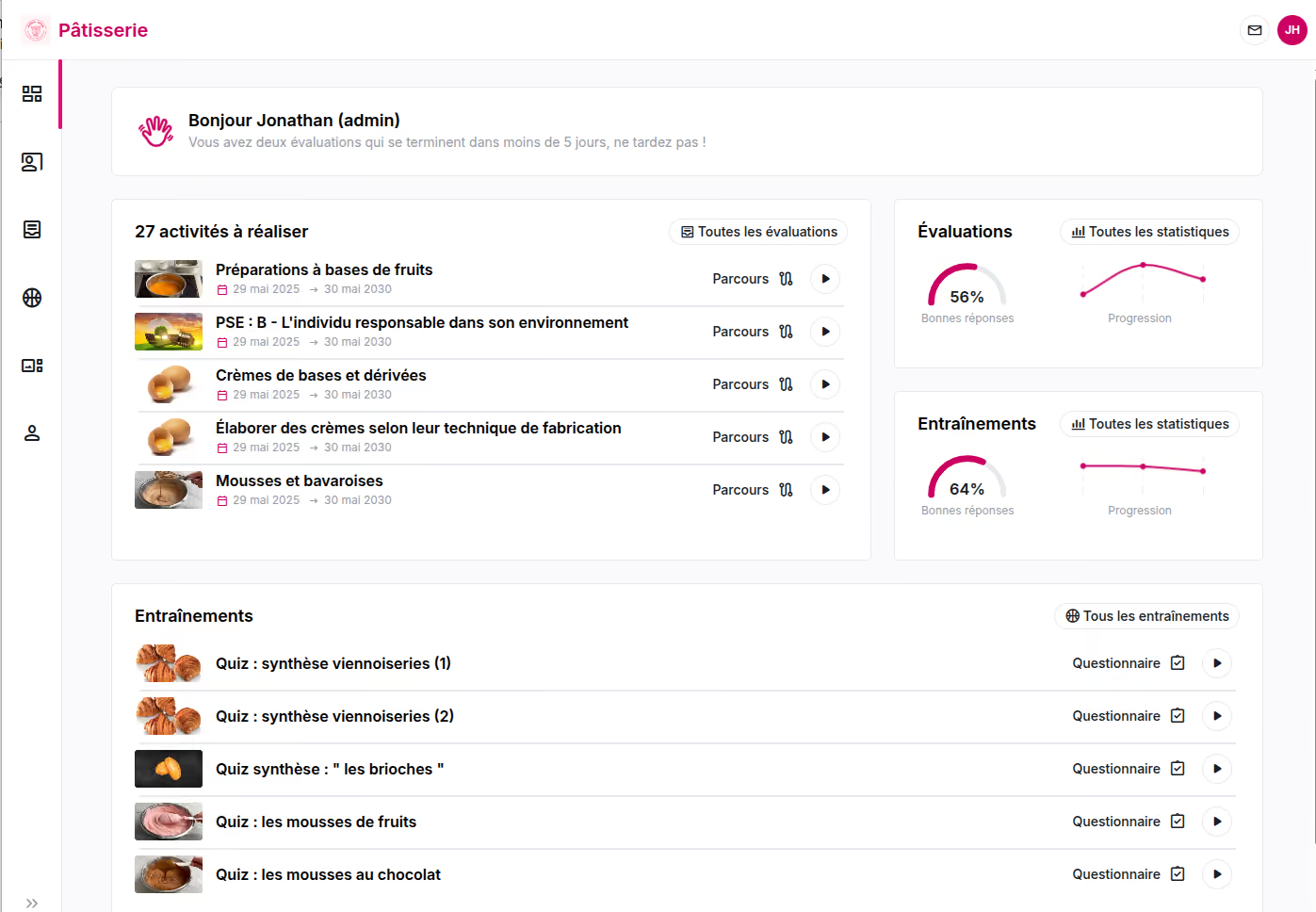
Particular attention has been paid to contrast and accessibility to improve usability and comfort for everyone.
To give you an exclusive preview of the new interface, we are hosting a webinar on Thursday, November 26, at 11:00 AM (Paris time).
Don't hesitate to register! (The event will be in French)
AI Administration Assistant
The AI Administration Assistant helps you manage your day-to-day activities in Experquiz. You can use it, for example, to find a user, view results, explore the contents of a question bank, or learn how to use a feature.
Ask your question in natural language, just as you would ask a colleague. To get an accurate answer, specify the name of the question bank, group, module, or user concerned. For results and activity history, also indicate the relevant period or date.
Examples to try
Adapt the names and dates below to your organization.
Refine your answers within the same conversation
You can proceed step by step without repeating the entire context.
For example, after asking "Find Claire Martin in the Experts group", you can follow up with:
- "Which other groups does she belong to?"
- "Is she an administrator of our company?"
- "Present this information in a table."
If several users or content items match your request, specify which one you would like to view.
A few useful tips
A precise request makes searching easier. For example, use "Results from the IT Security question bank in September 2026" rather than "Recent results".
You can also request more details — "Give me the participants and their scores" — or specify the response format: "Summarize in five lines" or "Present the results by domain".
What the assistant can and cannot do
The assistant can only access data that your permissions allow you to view. Some searches return a limited selection of results.
Data retrieved through the assistant follows the same permission and access rules already applied throughout the application.
If a user is only authorized to view certain question banks or user groups, the assistant applies exactly the same restrictions as the rest of the application. In other words, it cannot be used to bypass access permissions.
The assistant can explain how to perform an operation in Experquiz, but it cannot modify your data, such as creating or deleting a question bank, user or question, launching an assessment, etc.
If you already know how to navigate to a particular page and filter the results, the application's standard features may provide an answer more quickly.
The assistant's main advantage is that you do not need to know where to look. Simply ask questions as they come to mind. It provides a single, consistent access point to all the data you are authorized to view.
Module editing
A smoother module creation experience
The module creation process has been improved to give you a better preview of your modules.
You can now select and organize steps, questionnaires, media and SCORM content, and configure their settings from a single page (1).
Attendance certificate settings are now managed on a dedicated page (2).
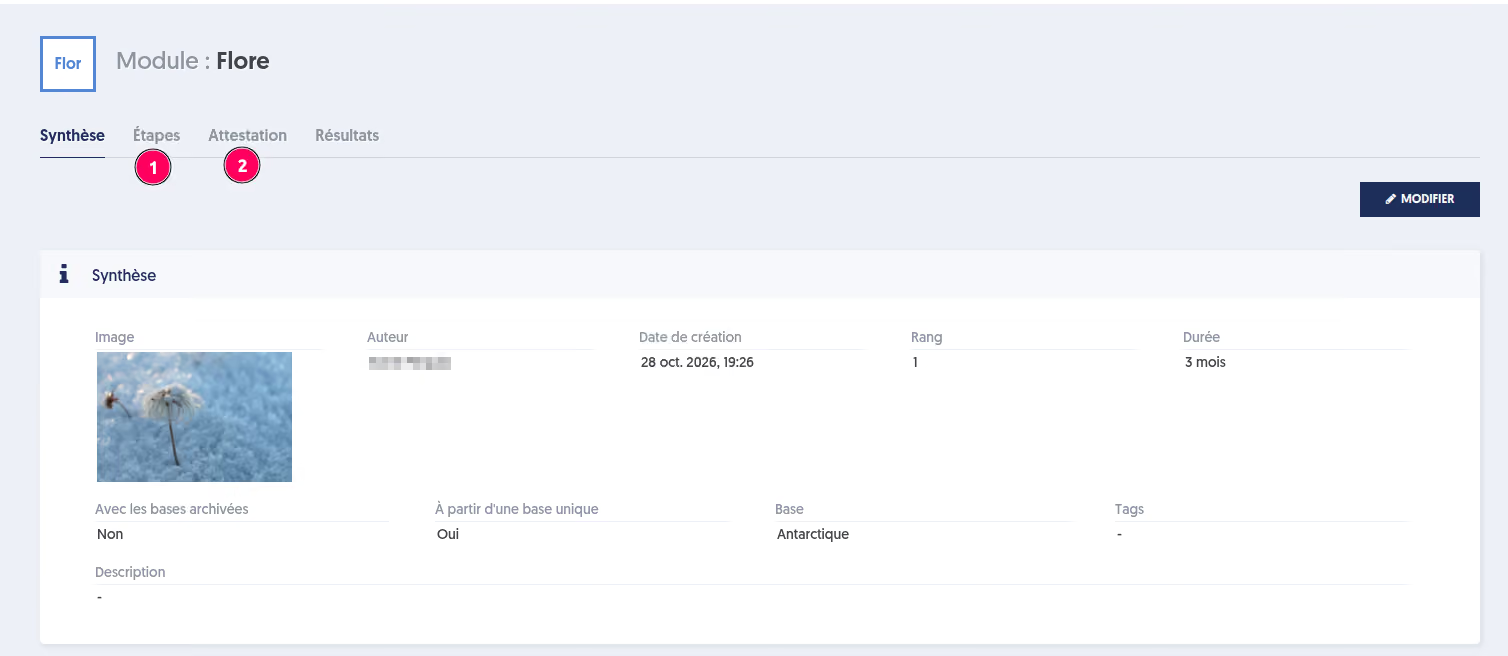
Page layout
The page is organized into two sections:
- The module introduction
- The module structure, consisting of the steps to be completed
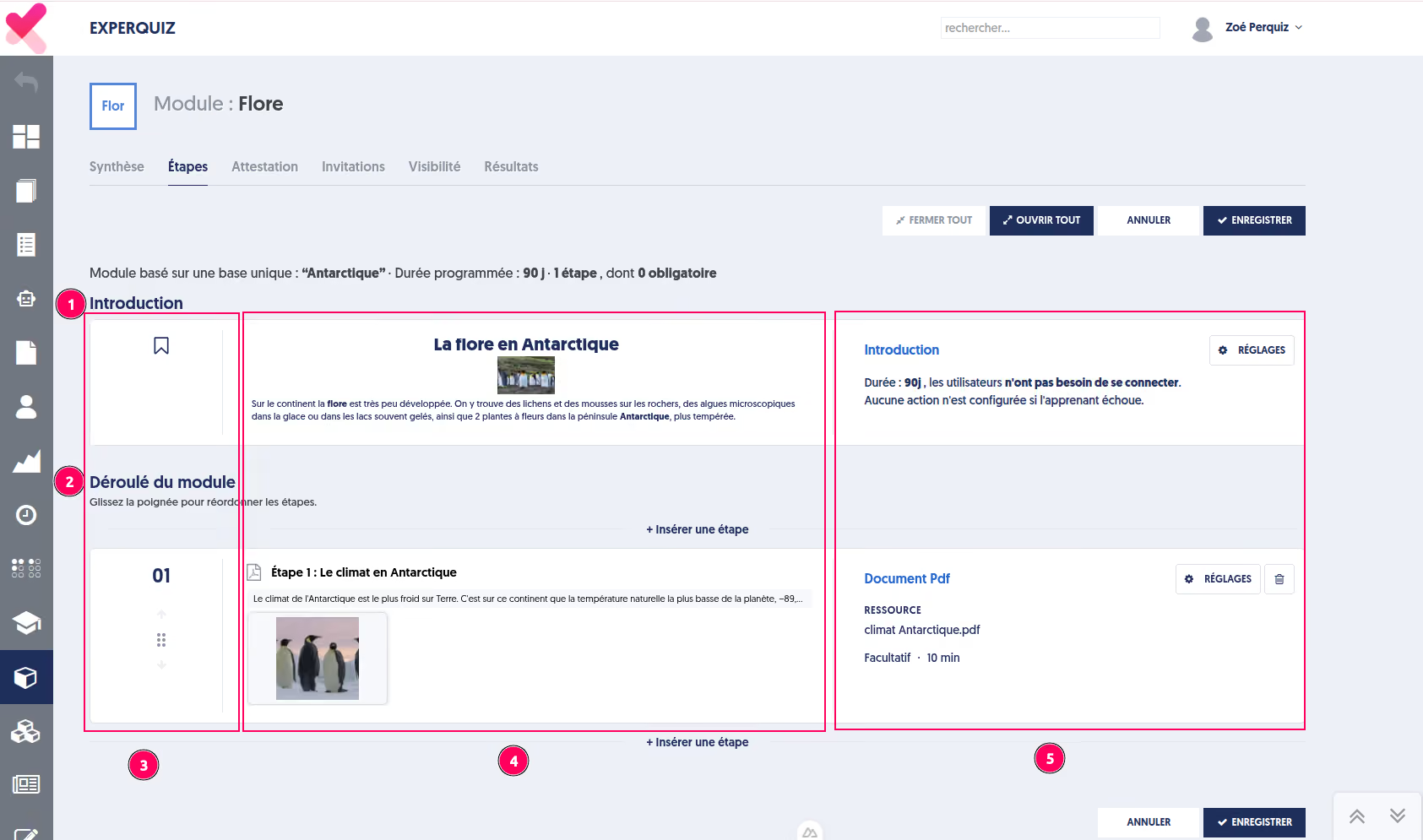
Each step is displayed on a separate row, showing:
- Its position within the module
- A preview of how it will appear in the module
- Its settings, which we will describe below
The module introduction
The page first displays a preview of the introduction (1) on the left, along with a summary of its settings (2).

By opening the settings, you can configure the introduction's general settings (3). You can also edit the title and text displayed to participants (4), and choose the image used to illustrate the title (5).
General settings

Login (1)
If you select Yes, users with an account will need to log in using their password before starting the module. Otherwise, they can access it directly through the invitation link without logging in.
Side navigation menu (2)
If you select Yes, a vertical menu will appear on the left-hand side, displaying the module steps and the user's progress.
Otherwise, the menu will not be displayed, and users will navigate using the Next and Previous buttons available within each step.
Duration (3)
This maximum duration corresponds to the time users have to complete the module, starting from the moment they begin. It can be set in days, hours and minutes.
For example, a duration of 7 days, 6 hours and 15 minutes means that users have 7 days, 6 hours and 15 minutes to complete the module.
What happens if a user fails?
If a user fails the module, you can choose to:
- Receive an email at the address specified in the company settings, under the Contact message to the administrator option.
- Assign the user to a group of your choice. This makes it easier to identify users who have not successfully completed the module and offer them another learning activity.
Adding a step to the module
To add a new step, click the + Insert a step button.
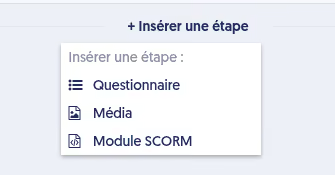
When you select the type of step you want to insert, a panel opens displaying the available resources.
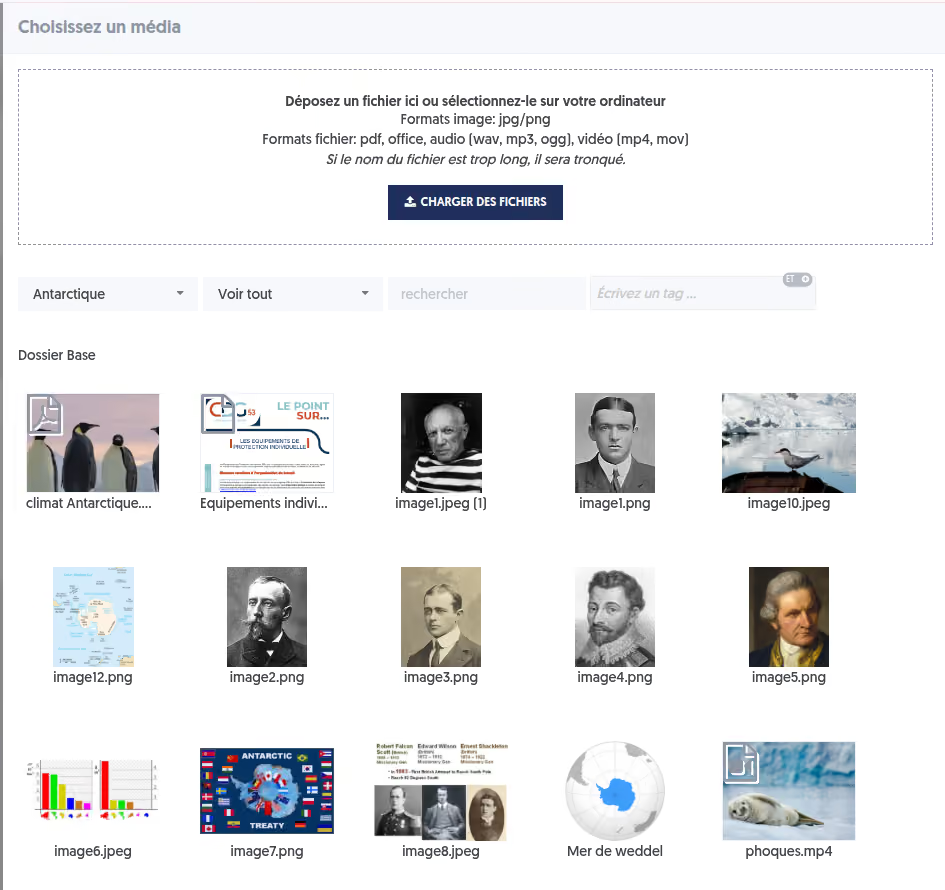
Media step
In a Media step, you can edit the title, add an introductory message and specify an estimated completion time.
If the media is a video or a SCORM package, you can make the step mandatory.
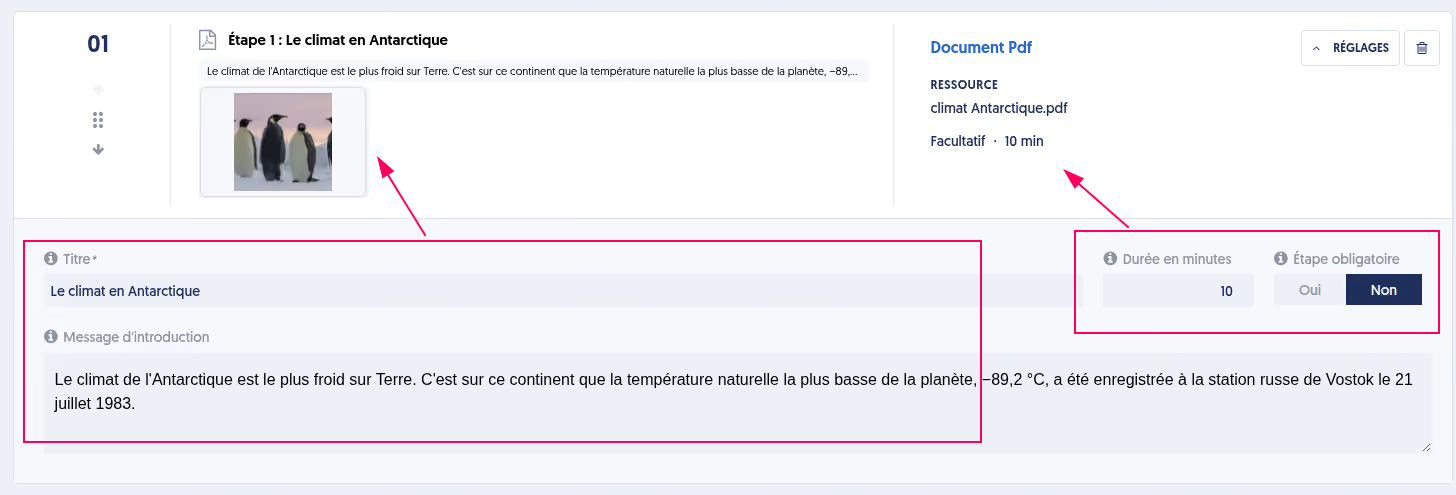
Questionnaire step
The Questionnaire step is displayed as a row, with a preview of the questionnaire on one side (1) and a summary of its main settings on the other (2).
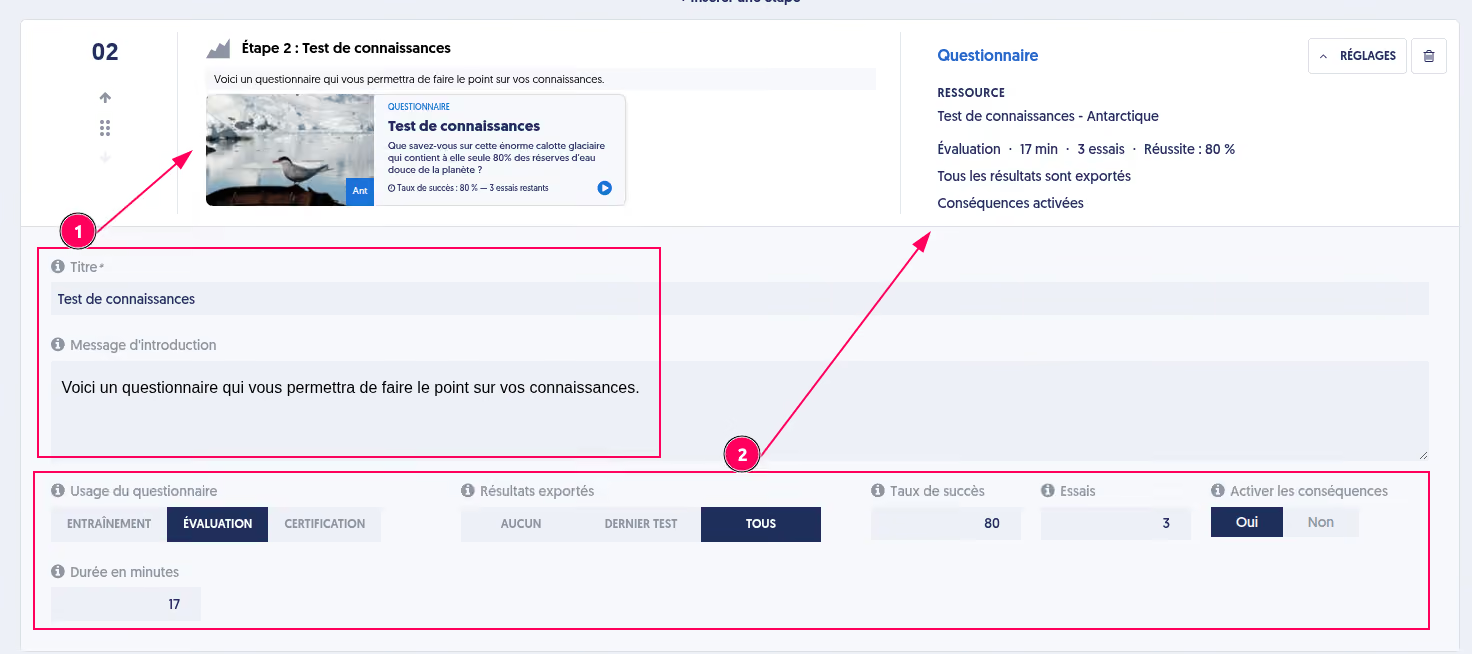
SCORM step
The SCORM step allows you to integrate a SCORM package into your module.
You can specify an estimated completion time and make this step mandatory. In this case, make sure the SCORM package sends Experquiz the information confirming that it has been completed, so that the step can be validated.
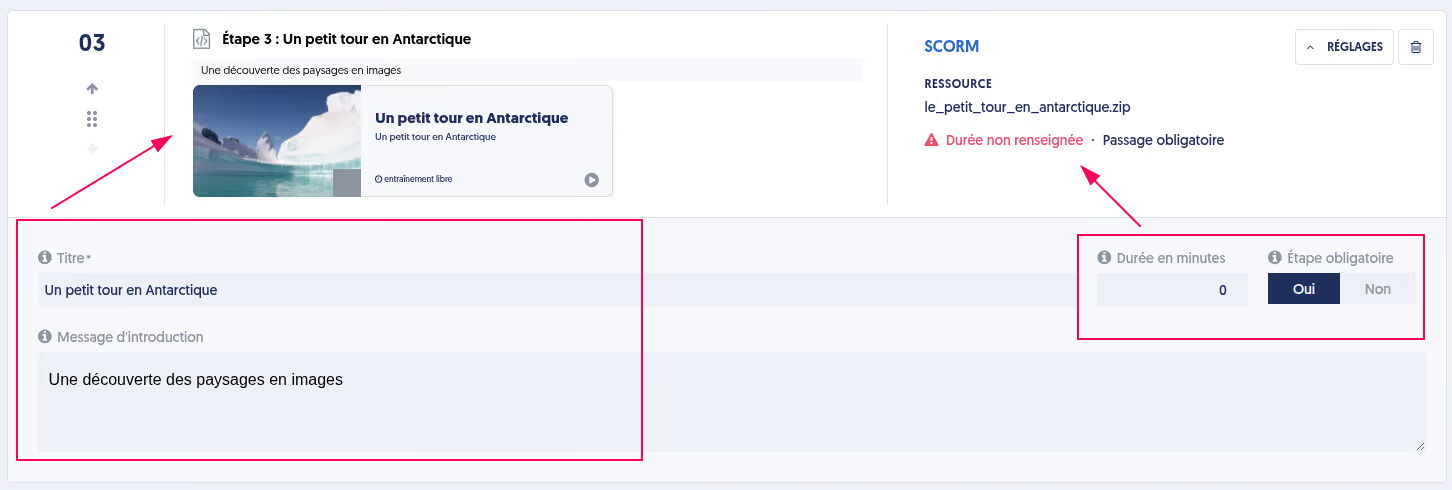
Some warning messages, such as "The estimated duration of this step has not been specified", are highlighted in red.
AI token usage tracking
As you have seen, Experquiz is introducing more and more features powered by Artificial Intelligence.
Here is a brief overview:
- Question generation, with or without supporting documents
- Generation of distractor answers when editing a question
- Text-to-mood: converting a text response into a satisfaction score
- Automated grading of open-ended answers in assessments, with or without specific instructions and model answers
- Multilingual content and automatic translation
- Analysis and summarization of datasets on results overview pages
- Creation of a new question bank, including its questions and questionnaires
- Interactive questionnaires and conversational assessment
- AI-powered assistance
These features rely on OpenAI models, whose usage is billed to Experquiz.
One important point to note:
The terms of use for OpenAI models accessed through APIs clearly specify that:
- (a) Information and documents submitted are not used to train the models and therefore do not influence their future responses.
- (b) Information and documents are not retained beyond the usage period.
We have implemented detailed tracking of AI resource consumption, accessible under:
Settings > Administration > AI Token Logs
Some features, such as interactive questionnaires, can generate significant AI token consumption and therefore higher costs.
This is why we are gradually introducing a monthly quota system for AI usage.
On the AI Consumption page, you can view:
- Your current month's consumption
- Your monthly quota
- Your remaining balance for the month
It is important to emphasize that you do not need to worry about receiving an unexpected bill for your AI usage in Experquiz.
However, once you reach your monthly quota limit, AI-powered features will no longer be available until the quota is renewed.
The free AI token quota depends on your Experquiz usage and the terms of your contract.
This quota is designed to be generous enough to meet the needs of most of our customers.
Nevertheless, if your usage exceeds the allocated quota, we will be able to offer additional packages providing a higher monthly allowance.
Exporting open-ended questions to DOCX
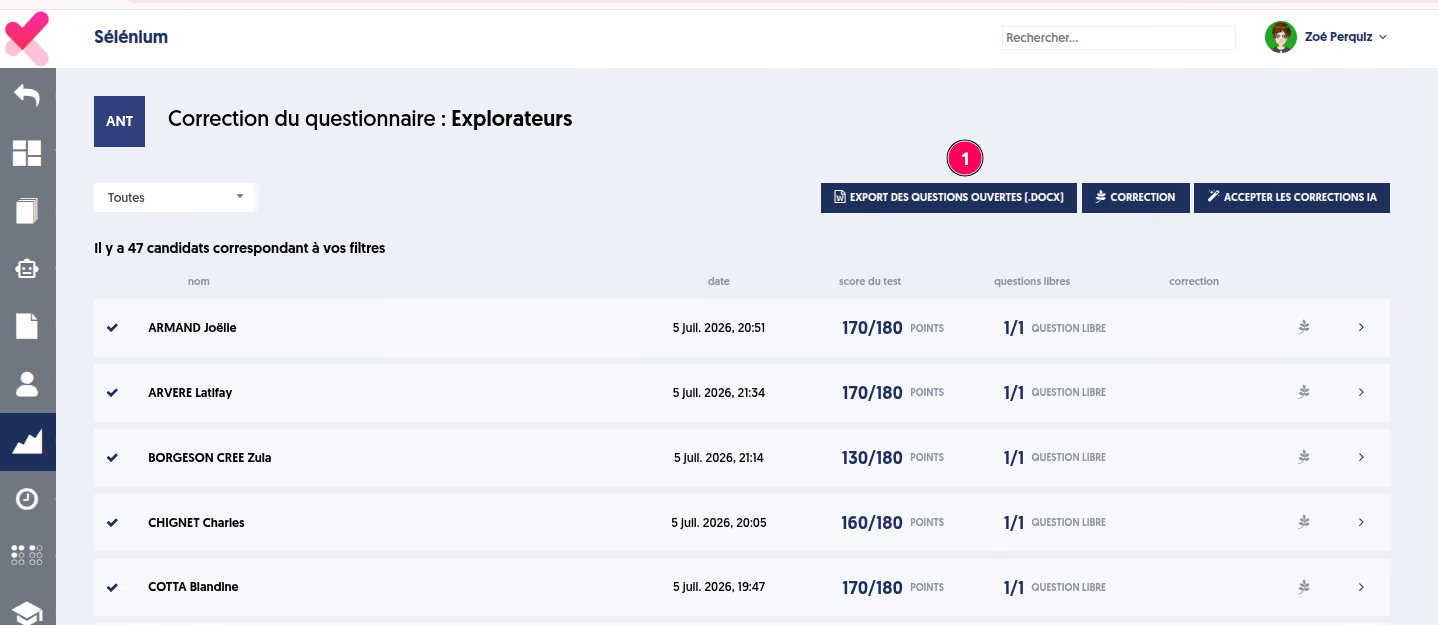
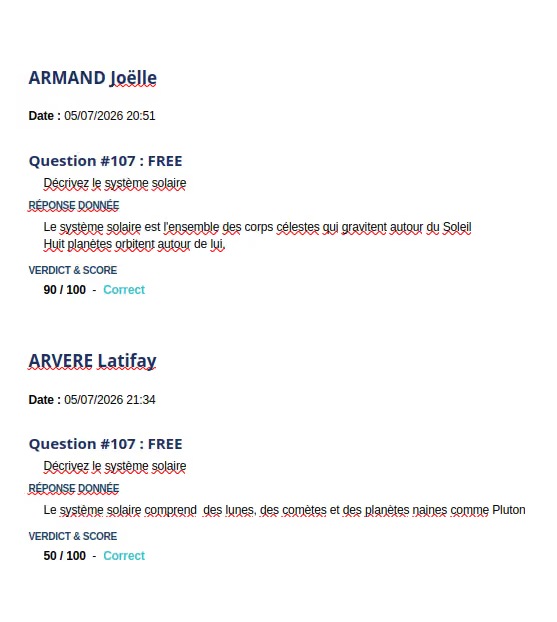
An export feature allows you to work on participants' answers in DOCX format.
Scenario-based cross-assessment
Did you know? Assess skills from multiple perspectives
Scenario-based cross-assessment allows you to compare an employee's self-assessment with an assessment completed by another evaluator, such as their manager.
Both assessments use a common evaluation framework based on your skills framework, which can be supplemented with additional custom assessment criteria when needed.
An authorized person then consolidates the results to produce the final assessment.
This final assessment can be exported as a PDF and used to update the employee's skills record.
To enable this feature, go to:
Settings > Parameters > Skills > Use scenario-based cross-assessments
Overview of the process
- Create a scenario based on the skills framework.
- Customize the scenario to define the assessment criteria precisely. You can add custom assessment criteria that are not linked to the skills framework.
- Activate the scenario to make it available for use.
- Send a cross-assessment invitation to both the employee being assessed and the evaluator.
- Complete the assessments independently. The employee completes their self-assessment, while the evaluator carries out the cross-assessment. There is no required order.
- Consolidate the results. The person responsible for consolidation produces the final consolidated assessment.
- Export the assessment report in PDF format.
- Update the skills record, if required.
Similar topics







Creating a quiz with AI: Benefits and Limitations
Artificial intelligence is rapidly transforming the way educational content is designed. Among the most promising use cases is the automated creation of quizzes and assessments.
But should you really entrust the design of your assessments to AI? Is it a true time-saver without compromise, or a risk to the quality of evaluations?




Conversational assessment: A new way to learn with AI
Conversational assessment is transforming learning with AI through question generation, response analysis, and adaptive dialogue. This approach enhances engagement and knowledge retention while complementing structured tests in training programs.

Why training without assessment is (almost) useless
In a context where professional training has become a strategic lever for organizations, one essential question is still too often overlooked: how can we truly measure the effectiveness of a training program? Too many initiatives still focus solely on content delivery, without any real assessment mechanism. The result: significant investments for sometimes very limited impact.
Training programs without objective knowledge assessment lose a large part of their value. Today, the digitalization of assessments makes it possible to fundamentally transform the learning process.





The testing effect: why assessment is one of the best learning tools
The Testing Effect, is one of the most powerful principles in cognitive science. However, it remains largely underused in traditional learning methods. Far from being a simple measurement tool, the test is a great method for permanently memorizing, deeply understanding and improving quickly.

Reinventing assessments: the forgotten power of open-ended questions
In the world of vocational training, the open question (or free answer) is a type of question that is too little used in assessments, mostly because of the cumbersome nature of the correction. However, the open-ended question has many advantages when it comes to assessing knowledge!


How to ensure total mastery of knowledge?
Ensuring total mastery of knowledge is no longer a luxury but a strategic necessity. Only regular evaluation, combined with adaptive learning, makes it possible to secure critical knowledge, reduce risks and unleash the performance of employees.


Microlearning: best practices
Microlearning is now becoming an essential approach to vocational training. Short, targeted and accessible on demand, it meets new digital uses and learners' time constraints. But for it to be really effective, it must be thought out methodically.

Best practices for creating a satisfaction survey
Satisfaction surveys are a valuable tool for measuring the effectiveness of training, to get feedback from learners but also from trainers and to identify areas for improvement. Well designed, they are a valuable source of information on training courses and help strengthen the learner experience.


Understanding SSO authentication
We juggle a multitude of applications and online services: remembering and entering several identifiers and passwords can be a real barrier to productivity. Single Sign-On (SSO) provides a simple answer: a single connection is enough to access all its tools. But how does that work, what are the benefits, and why is it particularly useful in an online training system (LMS)?

Reinventing training assessment in the digital age
The integration of new employees and service providers, certifications, skills management and training programs are now major challenges for most organizations. Offering training systems is no longer enough: training must be really effective, and this effectiveness must be measurable.
It is therefore essential to objectively assess the quality of each course in order to know if it has achieved its educational objectives and whether it has truly brought value to the learners and to the organization.


How assessment supports the development of employee skills
Often used as a tool to check knowledge and to deliver certification, assessment is perceived as a test by learners. However, it is a rich and effective learning tool that helps support the skills development of employees.


Automated correction for open-ended questions
Experquiz offers a type of question that is corrected by a trainer asynchronously: it's the open-ended question. The reviewer can write an appreciation and assign a grade which is then integrated into the overall evaluation score. Now the correcter can be assisted by AI !


L&D at the service of customer retention
In an increasingly competitive market, businesses are constantly looking for innovative solutions to improve customer satisfaction and retain them.
Learning & Development (L&D), traditionally reserved for internal training, is proving to be a strategic lever for achieving this objective. By combining digital platforms like Experquiz with the activities of sales and marketing teams, businesses can transform their approach to customer relationships.

How to choose a powerful online quiz maker?
Online quizzes are particularly effective for testing knowledge, engaging learners, collecting data to improve training or even simply creating fun activities.
It is still necessary to rely on a digital tool that makes it possible to respond precisely to the goals of the questionnaires.
Different types of quiz maker exist, more or less complete and more or less specialized: for example, some only do fun quizzes, others integrate assessment functionalities into a more global online training solution.


Boost your marketing strategy with training and learning
Assessment and, more broadly, training can be used to effectively enrich a company's sales and marketing strategy. The goal is to engage prospects and customers by creating high value content, promoting expertise and brand image. Training becomes a strategic lever for business growth!


The different forms of assessments
In the world of professional training, assessment is a powerful tool to help with the acquisition of knowledge and skills.
Unfortunately, this tool is often used too little or even poorly exploited and is only limited to end-of-course evaluations to confirm or not the acquisition of the concepts seen during the training.
But assessment, particularly in the fields of education, human resources, and management, can take several forms depending on the objectives, contexts, and methods used.

Optimizing skills management in companies
In a constantly evolving professional context, mastering skills is a major challenge for companies seeking to strengthen their competitiveness and secure their future. Let's explore skills management from different angles: from the need to define a common framework, through the challenges linked to skills assessment, to the crucial contribution of technologies in the implementation of effective assessment strategies.

Professional Training 2.0: How generative AI changes the game
The term generative AI is everywhere, especially since the arrival of ChatGPT from OpenAI. But what is it in concrete terms and what impacts does this new technology have on the world of professional training?


Transferable skills: an asset for businesses
In an ever-changing professional landscape, businesses are constantly looking for ways to remain competitive and adapted to change. A resource that is often underestimated but crucial in this quest is that of transferable skills. Let's explore in depth the importance of transferable skills for businesses and why it's essential not to overlook them.


Will AI replace trainers?
With the arrival of OpenAI innovation, ChatGPT, artificial intelligence is at the forefront and we now know that all sectors will be impacted fairly quickly. The world of training is obviously not spared.


Best practices for designing an effective elearning module
E-learning modules are a great way to deliver training on almost any topic at scale.
Companies, training organizations and trainers are therefore increasingly relying on this efficient, economical and accessible digital format to train employees, customers and partners.
But what are the best practices for designing and deploying effective elearning modules?

The challenges of training assessment
Evaluating a training means determining its value, but what defines the value of a training? It seems to us that the clearest definition would be: to what extent did the training achieve the stated objectives? Which, of course, presupposes having defined them in a precise and systematic manner.

PAPI & Soft Skills
To assess soft skills, tools like the PAPI (Personality and Preference Inventory) are essential.
In a constantly evolving professional world, technical skills (hard skills) are no longer enough to guarantee the success of an individual or an organization.
Behavioral skills, often called “soft skills”, are becoming more and more important!


Knowledge assessment
The assessment of knowledge is a quite different issue from that of training evaluation based on surveys. Knowledge assessment is the objective measurement of the outcomes that were the subject of the training, while satisfaction evaluation is, by nature, a subjective measurement.

NPS : Net Promoter Score
As part of a genuine approach totraining assessment, which will make it possible to measure both the acquisition of knowledge but also the satisfaction of learners, managers and even trainers, it is essential to define key indicators that can be measured and monitored. The NPS makes it possible to calculate and note satisfaction but also to monitor its evolution (from one period to another, from one training session to another, etc.).

Training assessment: the Kirkpatrick model
It's difficult to talk about training evaluation without talking about the Kirkpatrick model, named after Donald Kirkpatrick, who set out his vision in particular in a 1994 work entitled “Evaluating Training Programs”.

What is m-learning in the world of digital learning?
The world of education and training is in constant evolution, with ever more innovative learning methods that are changing the way everyone learns and assimilates knowledge.
One of these new methods is m-learning, or mobile learning, which has transformed access to training. But what exactly is m-learning?





Soft skills assessment with Experquiz
In recent years, soft skills have become increasingly important within companies. Both in the recruitment phase to get to know the candidates better, but also during the career of employees in the company, to determine areas for improvement, the assessment of soft skills has become an issue that is just as important as the hard skills assessment.


How to increase assessment acceptance in companies
Assessment is simply quantifying something and giving it a value. The action of measuring is normally and generally something objective and precise. However, assessment is something less cartesian, often influenced by subjectivity.

For a real culture of knowledge in business
It is obvious that all jobs rely on knowledge, and increasingly so. The more knowledge is disseminated and mastered, the better everyone will succeed in their missions. And yet, many companies are not entirely aware of this, and do not make knowledge control a strategic axis of progress.


Adaptive-learning and micro-learning by Experquiz
Experquiz is one of France's leading specialists in the key concepts of assessment, adaptive learning and microlearning. Its many customers will agree: "When it comes to learning, it's essential to be able to vary approaches, to approach the same learning from different angles and with different tools, different rhythms"... and to have the essential tools at your disposal.


What is blended learning?
Training and learning have adapted to changes in working methods, organizational shifts and new technologies. E-learning makes it possible to effectively train a large number of learners, on a vast choice of themes, with more flexible time management, while limiting costs compared to face-to-face training, which requires a trainer and resources.


Why choose a LAS for your digital learning programs?
Like the LMS, a LAS is a SaaS, digital learning solution that allows companies, training centers and educational institutions to provide complete training courses including training assessment.